
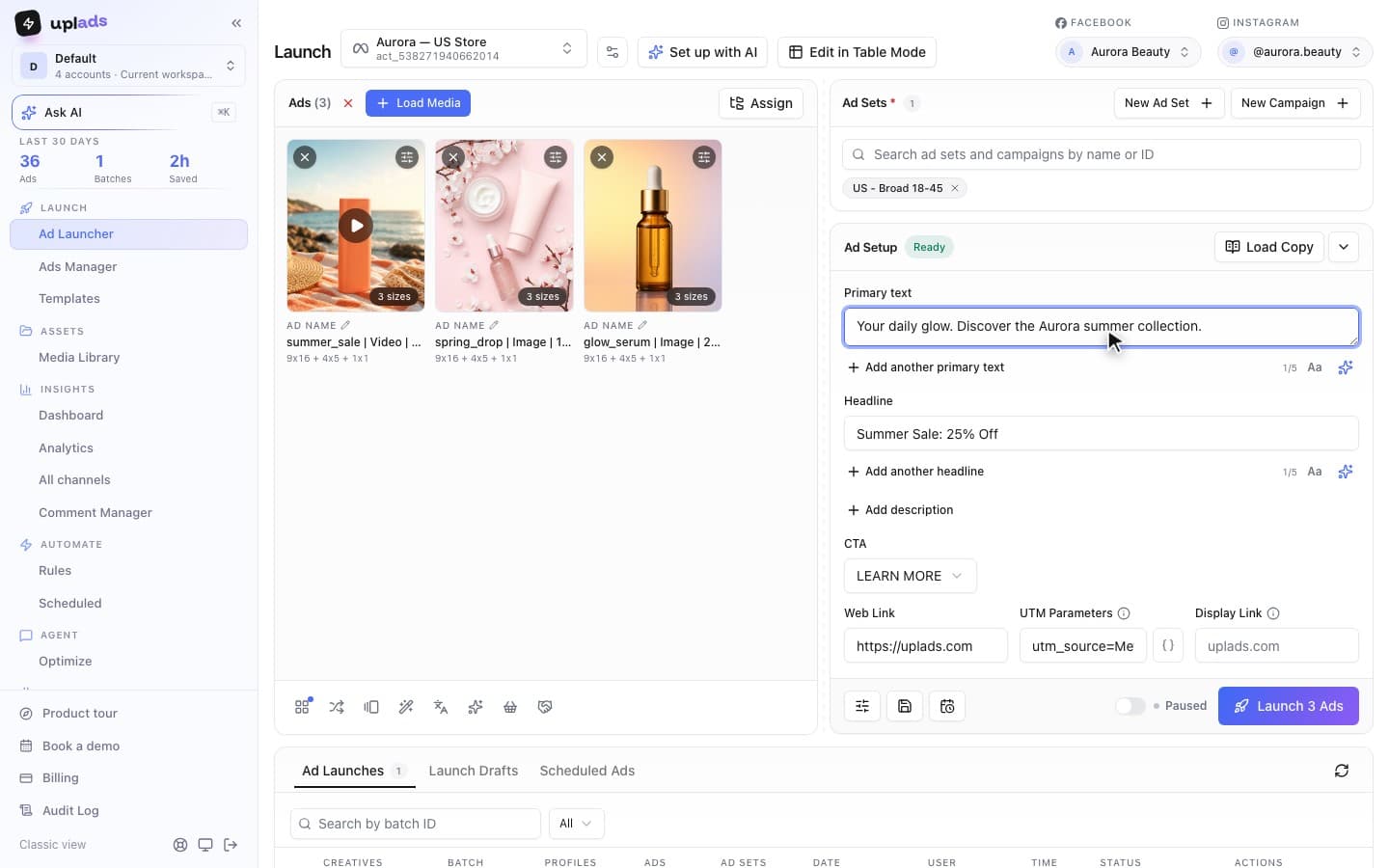
If you run paid social past a handful of ads a week, the question is not whether to bulk upload Facebook ads, it is which method costs you the least time and the fewest mistakes. The short answer: you have three paths, the native Meta Excel import is the default everyone reaches for first, and it is also the one that quietly eats an afternoon when a video row fails on import. This guide walks all three, step by step, and tells you when each is the right call.
I build the tooling for an Austrian performance marketing agency where a normal week is dozens of new ad variants per client. The "how do we get all of these live without clicking for three hours" problem is one I have stared at from both sides: the operator drowning in Ads Manager tabs, and the person writing the code that replaces them. The honest version of this topic is below, native method included.
What "bulk upload" actually means on Facebook
Bulk upload on Facebook means creating many ads in one operation instead of building them one at a time in Meta Ads Manager.
That sounds obvious, but the word "bulk" hides three different jobs that get lumped together:
- Bulk media upload - getting the raw images and videos into your ad account so they can be used.
- Bulk ad creation - turning that media into actual ads, each with its copy, link, call to action, and placements, inside one or more ad sets.
- Bulk launch - pushing all of those created ads live against the right ad sets at once.
Meta's native tools split these jobs apart. You upload media in one place, the creatives live in your account, and then the Excel import builds the ads that reference that media. A lot of the friction people hit with "Facebook ads bulk upload" is actually friction at the seams between those three steps. Keep the distinction in mind: the method you choose mostly comes down to how many of these seams it removes for you.
The three ways to bulk upload Facebook ads
There are exactly three viable methods, and the right one is a function of how many ads you ship per week.
| Method | Best for | What it costs you | What it skips |
|---|---|---|---|
| Manual duplication in Ads Manager | Under ~10 ads | Clicking, per ad | Nothing - you do everything by hand |
| Native Meta Excel/CSV import | A few dozen ads, occasional | Spreadsheet prep + media setup | Carrying the files, enforcing naming |
| Direct-upload bulk tool | Dozens to hundreds, weekly | A one-time setup | The spreadsheet, the media step, the cleanup |
The decision tree is short. Under ten ads, do not over-engineer it: duplicate and edit. A few dozen ads once in a while, with media already in your account: the native Excel import is free and it works. Dozens to hundreds of ads every week, especially with multiple aspect ratios and a naming convention you actually care about: that is where the spreadsheet's seams start costing real time, and a dedicated bulk upload tool earns its keep in the first launch.
The reason volume changes the answer is that the methods do not scale the same way. Manual duplication is linear: fifty ads is fifty times the clicking. The spreadsheet front-loads the cost into prep. A direct-upload pipeline flattens it. Here is the same job - building fifty ads - measured three ways.
Illustrative: the manual figure is the per-ad clicking compounding; the spreadsheet figure is mostly prep and media setup; the tool figure is drop, configure, launch.
The rest of this guide is the detailed walkthrough of each.
Method 1: The native Meta Excel/CSV bulk import, step by step
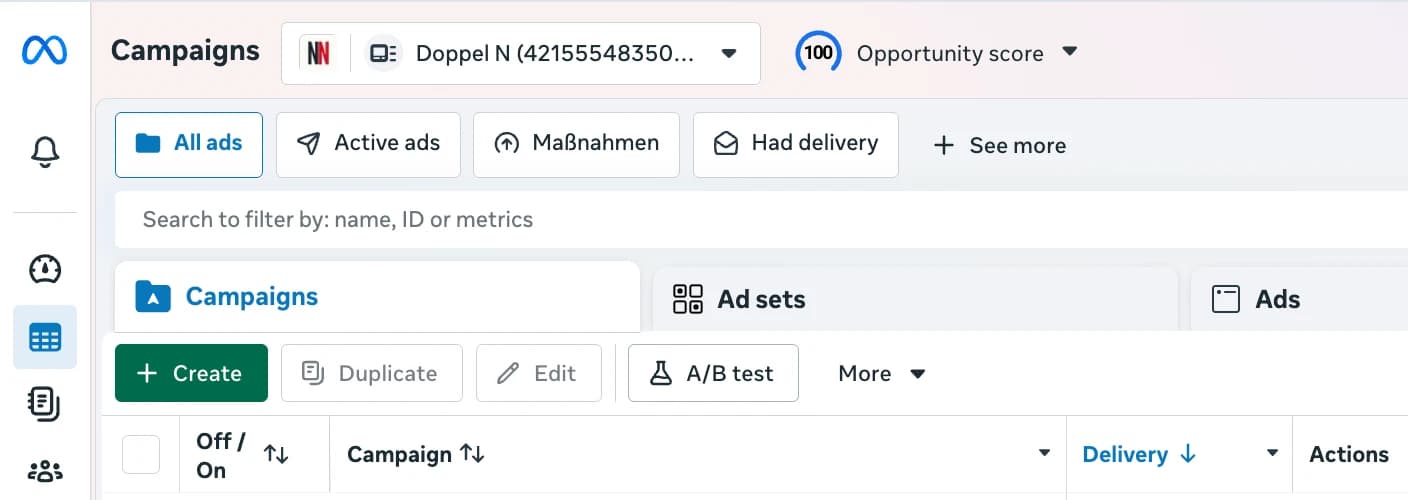
Meta Ads Manager has a built-in bulk import: you export a spreadsheet template, fill one row per ad, and re-import it to create every ad at once.
This is the method the official Meta Business Help Center documents, and it is the right starting point because it is free, native, and does genuinely create dozens of ads from one file. Here is the actual sequence.
Bulk import ads with the native Meta spreadsheet
- 1
Prepare your media
Upload the images and videos you want to use into your ad account first (Ads Manager media library, or use an existing published post). The spreadsheet references media, it does not carry the files - this step is not optional.
- 2
Open bulk creation
In Ads Manager, create or open the campaign and ad set, then switch the ad creation surface into the bulk/import view. This is where the Excel and CSV export and import controls live.
- 3
Export the template
Download the template spreadsheet. It comes pre-structured with the columns Meta expects: campaign, ad set, ad name, creative reference, primary text, headline, description, link, call to action, URL parameters, and placement fields.
- 4
Fill one row per ad
Each row is one ad. Paste the ad name (your naming convention string), the primary text and headline, the destination URL, the UTM string in URL parameters, and the reference to the right media. Multiple texts or headlines go in the columns Meta provides for dynamic variants.
- 5
Re-import the file
Upload the completed spreadsheet back into Ads Manager. Meta validates every row and shows errors before anything is created.
- 6
Review and publish
Fix any flagged rows, confirm the preview, and publish. The ads are created across the ad sets you referenced.
For a person who lives in spreadsheets and ships a couple dozen ads occasionally, this works. It is the honest baseline, and if that describes your week, you may not need anything else. The reason this guide does not stop here is that "a couple dozen, occasionally" is not what a performance team's week looks like.
Where the native bulk import breaks
The native Excel import is fine until volume, video, or a naming convention enters the picture - then three specific failure modes show up.
Be specific about where it cracks, because the failure modes are predictable:
It references media, it does not carry it. Every row points at media that must already exist in your ad account. So the "bulk upload" is actually two projects: get all the creatives into the account correctly, then build a spreadsheet that references them without a single mismatched ID. With dozens of videos that is a real, error-prone setup step the official docs gloss over. Meta's own video import help caps bulk video imports tightly for exactly this reason.
One bad row taxes the whole batch. A typo in a URL, a creative reference that does not resolve, an unsupported aspect ratio: the import surfaces it, but you are now debugging a spreadsheet instead of reviewing live ads. At fifty rows the probability that every row is perfect on the first pass is not high, and the cost of being wrong is paid after the prep, not before.
It enforces nothing. The template has an ad-name column and a URL-parameters column, which means your naming convention and your UTMs are only as consistent as your copy-paste discipline across fifty rows. There is no template engine validating that every ad name matches the pattern. You find the mislabelled ads weeks later, in the report, when the attribution does not line up. For teams whose dashboards parse ad names, "fixed afterwards" is a recurring tax.
None of this makes the native import useless. It makes it the right tool for a narrow case (modest volume, media already clean, naming you will tidy later) and the wrong tool for a high-volume creative-testing motion.
Method 2: Duplicating ad sets and ads by hand
The other native path is duplication: build one ad correctly, then duplicate the ad or the ad set and edit each copy.
For three to eight ads this is genuinely the fastest method, because there is no template to export and no file to validate. It is also how most accounts started doing "bulk" before they admitted the volume had outgrown it.
The trap is linear cost. Duplicating one ad set across ten audiences and swapping the creative each time is not a five-minute job - it is the same five minutes, ten times, plus the renaming, plus the placement double-check on each. Before uplads existed, our agency maintained a Notion page full of "duplicate this ad set ten times, then rename, then swap creative" macros for client accounts. Killing that Notion page was the unofficial reason the tool got built: the work was too mundane to keep doing by hand and too important to do inconsistently. If your duplication routine has its own documentation, you have already outgrown Method 2.
Method 3: Bulk upload Facebook ads without the spreadsheet
The third method is a direct-upload tool: you drop the raw creatives in, the tool uploads them to Meta and builds every ad against the Meta Marketing API, no spreadsheet in between.
This collapses the three jobs from the first section - bulk media upload, bulk ad creation, bulk launch - into one pass. It is the method that makes sense once your week is measured in dozens of new ad variants, not a handful. uplads is built around exactly this loop, so I will use it as the concrete example of how the tool path works, in four steps:
Drop the creatives. Drag fifty to two hundred images and videos into the browser. Files upload directly to secure cloud storage, and the same file is recognised so it never wastes an upload twice. There is no separate "get the media into the account first" project.
Pick the ad sets. Select the ad sets the creatives should launch into. One creative can be pushed into many ad sets in a single launch, so a fan-out that is fifty manual duplications becomes one selection.
Pick a naming template. Compose a template from tokens (the file name, a creative ID, the date, a custom field) once. It is applied to every ad at launch time, so the ad name is correct before the ad exists, not cleaned up after.
Launch. The batch is processed in the background, fifty ads at a time. If one ad gets rejected by a policy check or a transcode hiccup, the rest still go live - one bad ad does not kill the launch.
The structural difference from the Excel import is failure isolation. The spreadsheet import is transactional: bad row, blocked batch. A per-ad pipeline is the opposite: ad seventeen fails, ads one through sixteen and eighteen through fifty are live, and you re-run only the one that failed. For a fifty-ad launch that is the difference between "review the three rejections" and "debug the file."
200
No per-launch cap on a direct-upload pipeline
50
Ads created per background job, fail-isolated
1
Applied at launch, not cleaned up after
0
Files carried in, no pre-upload project
Source: uplads internal benchmark, May 2026
The emerging fourth method: describe it to an assistant
Worth flagging because it changes the shape of the job rather than its speed. uplads runs an MCP connector, in beta, that lets Claude or ChatGPT work inside the workspace: point it at a Dropbox or Drive folder link with a budget, a date range and a geography, and it imports the creatives, writes the copy, creates the campaign and ad sets paused, and stages the launch in the Ad Launcher for you to review. It is Method 3 with the clicking removed rather than a different pipeline underneath, and it still ends at the same review screen with your finger on Launch. See MCP for advertisers for what to check before connecting anything to an ad account.
To be precise about scope: this is a Meta (Facebook and Instagram) workflow, which is what this guide is about. TikTok ad groups, Google Performance Max asset groups and Snapchat ad squads launch from the same upload screen in production - if your week is Meta-only, none of that changes the flow above. And "many ad sets in one launch" is the accurate claim: one launch targets one ad account and fans a creative across its ad sets. Agencies running many client accounts manage them in one workspace and launch per account - the multi-account part is how the workspace is organised, not a single launch writing into ten accounts at once.
Multi-placement, naming, and catalog: the parts the spreadsheet skips
The native import treats every ad as an independent row, which is exactly why the things that matter at scale - placements, naming, catalog - become manual.
These three are worth calling out because they are where the per-ad clicking actually compounds:
Multi-placement grouping. Most ads in 2026 need at least two aspect ratios: a 4×5 for Feed and a 9×16 for Stories and Reels. In the spreadsheet, those are two rows, which means two ads, which means double the ad count and split reporting. Multi-placement grouping detects that a 4×5 and a 9×16 are the same concept and collapses them into one ad that serves the right ratio per placement. One ad, both ratios, clean frequency and reporting - none of which the Excel template does for you.
Naming applied at launch. Covered above, but it is the single highest-leverage difference. A token-based naming engine applies the same template to every ad as it is created. The spreadsheet has a name column; an engine has a rule. The first is a place to make a typo across fifty rows, the second is a guarantee.
Catalog enhancement without per-ad clicking. If you run catalog-aware creative tests, attaching a Meta product set to enable the "Add Catalog Items" enhancement on every ad is a per-ad setting in the manual flow. A bulk tool attaches the product set once and rides it on every creative in the batch. The spreadsheet has no concept of this at all.
This is the real argument for Method 3 over Method 1: not raw speed, but that the parts you would otherwise do fifty times by hand are done once, by rule.
What about video, carousel, and catalog ads?
Bulk upload behaves differently by ad format, and video is where the native method struggles most.
This trips people up, so it is worth being concrete format by format:
Video ads. This is the native import's weakest point. Video has to be uploaded and processed by Meta before a spreadsheet row can reference it, and Meta's own bulk video import is tightly capped (the video import help documents the limit). At any real volume, the video pre-upload step is the bottleneck, not the ad creation. A direct-upload tool that carries the video files in and handles the upload and the ad creation in the same pass removes that ceiling.
Carousel ads. A carousel is multiple cards in one ad, so in a spreadsheet it is multiple linked rows or a more complex structure per ad. It is doable in the native import but it is the format most likely to produce a malformed row. If carousels are a routine part of your testing, the per-row fragility argument applies double.
Catalog and Advantage+ catalog ads. There is a real distinction here. Attaching a product set to enable the "Add Catalog Items" enhancement on a normal creative is one thing - a bulk tool does it once for the whole batch. A full Advantage+ catalog (dynamic product) ad is a different campaign object with its own setup; bulk creative upload speeds up the creative side of catalog testing, it does not turn every ad into a dynamic product ad. Be clear which one you actually need before you pick a method.
Lead form and dynamic creative ads. Lead-form ads reference an instant form the same way a normal ad references a landing URL, so they bulk-create like any other ad once the form exists. Dynamic creative (Meta permuting your assets) is a setting on the ad, not a separate bulk path - you still create the ad in bulk, you just turn the dynamic option on.
The pattern across all five: static image ads are the easy case for every method, and the further you get from a single static image, the more the native spreadsheet's "reference, do not carry" design costs you. Match the method to the format mix you actually run, not the demo.
A weekly bulk-launch routine that scales
A scalable routine fixes the order of operations so that bulk upload is the fast last step, not the bottleneck.
Here is the routine that holds up whether you are solo or running client accounts:
- Produce creatives in named pairs. Export every concept as its 4×5 and 9×16 from the start, with a consistent file name. The file name is the seed of the ad name later, so naming discipline begins in the export, not in Ads Manager.
- Decide the test matrix before you touch a tool. Angles times audiences times ratios. Five angles, three audiences, two ratios is fifty ads - know that number before you start, so the launch is mechanical, not a series of decisions.
- Stage targeting once. Ad sets and audiences exist before launch day. Launch day is launch only.
- Bulk upload as the last step. Whichever method fits your volume: under ten ads, duplicate; a few dozen occasionally, the Excel import; dozens-plus weekly, a direct-upload tool. The point is that by the time you bulk upload, every decision is already made and the upload is the fifteen-minute mechanical close, not the four-hour grind.
The teams that scale paid social cleanly are not the ones with the most exotic tooling - they are the ones who moved the thinking earlier so the launch itself is boring. Bulk upload is supposed to be the boring part. If it is the stressful part, the method is wrong for your volume.
Stop rebuilding ads row by row
uplads ingests your raw creatives, groups placements, applies your naming template, and launches the batch against Meta - no spreadsheet, no media pre-upload, no per-ad cleanup.
Common mistakes when bulk uploading Facebook ads
The recurring failures are not exotic - they are the same four, in roughly this order of frequency.
Building the spreadsheet before the media is clean. The Excel import references media. If the creatives in the account are not organised and correctly referenced, the spreadsheet is built on sand. Get the media right first or use a method that carries the files for you.
No naming convention until reporting day. Pasting ad names into fifty rows by hand guarantees drift. Decide the convention, and apply it by rule, not by copy-paste. The cost of skipping this is invisible until the attribution report does not parse.
Treating one bad row as a one-off. With the native import, a failed row is not bad luck, it is the expected behaviour of a transactional import at volume. Either keep batches small enough to debug, or use a per-ad pipeline where one rejection does not block the other forty-nine.
Splitting one creative into two ads for two ratios. The 4×5 and the 9×16 of the same concept are one ad with placement-level customisation, not two ads. Doubling the ad count to cover placements inflates the account, splits the data, and makes frequency management harder. Group them.
Most of these disappear the moment the workflow stops being "fill a spreadsheet" and starts being "the rule is applied for me." Pick the method that matches your weekly volume, set the convention once, and let bulk upload be the part of the week you do not think about. If you are evaluating where the native path stops being enough, the Meta Ads Manager alternatives breakdown and the uplads vs admanage.ai comparison cover the tool options in more depth, and uplads pricing is the no-spend-cap version of the tool path.