
If you sell more than a handful of products, Advantage+ catalog ads are the format that does the work of remembering what each shopper looked at and putting the right product back in front of them. The setup is not hard, but it is back-loaded: the part everyone wants to skip, the prerequisites, is the part that decides whether the ads personalize correctly or quietly serve the wrong items for a month. This guide walks the whole thing in order, the way it actually has to happen.
I build the ad-operations tooling for an Austrian performance marketing agency that runs paid social for ecommerce brands, so catalog ads are not a theoretical topic here: they are a recurring Monday task across client accounts. The version below is the operator version: what to set up, in what order, where the failure points are, and where the native flow stops scaling.
What are Advantage+ catalog ads?
Advantage+ catalog ads are Meta ads that automatically show each person the most relevant products from your catalog, with the creative assembled per viewer instead of built by hand.
You hand Meta three inputs: a product catalog, an audience signal, and a format. Meta does the rest, choosing which products to show a given person from their interests, intent and on-site behavior, then rendering that as a single product card, a carousel of items, or a collection. The same ad shows a different person a different set of products. That is the entire point of the format: one ad definition, personalized output at delivery time, drawn live from your catalog and your Meta Pixel signals.
If the name sounds new, it is not. Advantage+ catalog ads are the rebrand of what the industry has called Dynamic Product Ads, or DPA, for years. Meta consolidated its automation features under the Advantage+ label and renamed the format; the mechanics did not change. Most performance marketers still say "DPA" in conversation and "Advantage+ catalog ads" in documents. They mean the same campaign type. Meta's own Advantage+ catalog ads documentation describes them as dynamically displayed products drawn from your catalog using events from the Meta Pixel or app SDK plus on-platform signals.
The format runs across Facebook and Instagram placements: Feed, Stories, Reels, Marketplace, and the right-hand column where it exists. You do not pick products per placement. You define the campaign once and Meta serves the personalized catalog creative wherever it places the ad.
Advantage+ catalog ads vs Advantage+ shopping vs the Add Catalog Items enhancement
Three things share the "Advantage+" and "catalog" vocabulary and get conflated constantly. Sorting them out before you build saves a wrong campaign type.
Advantage+ catalog ads (the DPA rebrand). Meta builds the creative from your catalog feed per viewer. There is no hand-crafted hero asset; the products are the creative. This is the format this guide sets up. Use it when you have a catalog of more than a few SKUs and want personalized product delivery, especially for retargeting.
Advantage+ shopping campaigns. A campaign-level automation that consolidates prospecting and retargeting into one heavily automated campaign with simplified controls and broad delivery. It can use your catalog, but it is a campaign structure decision, not an ad format. People search "advantage shopping campaign setup" expecting catalog ads and land on a different control surface. If your goal is "show people the right product from my catalog," you want catalog ads; Advantage+ shopping is an optional structure you can run them inside.
The Add Catalog Items enhancement. A normal ad you built yourself, with a product set attached so Meta appends a strip of dynamically chosen catalog items beneath your creative. Your image or video stays the primary asset and carries the hook; the catalog handles the conversion follow-through. This is not DPA. It is the right surface when the creative is the thing you are testing and the catalog is the constant, which is the creative-testing case most ecommerce teams are actually in week to week.
Why use Advantage+ catalog ads, and when to skip them
Use Advantage+ catalog ads when you have a real catalog and personalized product delivery beats a single hand-picked product, which for most ecommerce accounts is most of the time.
The benefit is mechanical, not vibes. The format collapses what would otherwise be hundreds of product-specific ads into one campaign that picks the right item per person at delivery, so a 400-SKU store does not need 400 ads to advertise 400 products. It compounds with your pixel: every ViewContent, AddToCart and Purchase makes the next impression better targeted, so the campaign sharpens itself as traffic accumulates instead of decaying like a static creative. And it covers the full funnel from one definition, harvesting existing intent through retargeting and creating new demand through the broad-audience setting, which is why it tends to become the highest-spend campaign in a scaled ecommerce account.
It is not the right format for everything. A single hero product, a service business with nothing to feed a catalog, or a launch where the message is the offer rather than the product range are all cases where a normal creative beats a dynamic one. And catalog ads are unforgiving of a thin or dirty catalog: with ten SKUs and weak images, a well-made static ad will out-convert a dynamic one because the dynamic format has nothing good to choose from. The format is a force multiplier on a healthy catalog and a magnifier of a bad one.
What you need before you set up Advantage+ catalog ads
The prerequisites are the setup. Get these three right and the campaign build is a formality; skip one and the ads run but never personalize correctly.
3
Catalog, pixel events, product set
3
ViewContent, AddToCart, Purchase
100
Per file upload, per Meta's FAQ
3
Single image, carousel, collection
Source: Meta Advantage+ catalog ads FAQ, checked October 2026
1. A catalog in Commerce Manager with a working product feed
Create a catalog in Meta Commerce Manager and populate it with your products. The feed can come from an ecommerce platform connection (a Shopify, WooCommerce or similar integration), a scheduled data feed file, the Meta Pixel generating items from pages people visit, or manual entry for a tiny catalog. For file uploads, Meta's catalog ads FAQ sets a limit of 100 MB per feed file and recommends staying under 5 million products per feed, so a very large store usually splits its feed by category or market.
The source matters less than the field hygiene. Every item needs a stable ID, title, description, price, availability, product URL, and at least one clean product image. The ID is the field that everything else hangs off, so it must be stable: if your feed regenerates IDs on every sync, personalization breaks because Meta cannot reconcile what someone viewed with what is in the catalog now.
Run the catalog diagnostics in Commerce Manager after the first sync. Items with missing images, missing prices, or "out of stock" availability silently drop out of delivery, and a catalog that looks full in the dashboard can be half-eligible in practice.
2. A Meta Pixel passing events with matching product IDs
Install the Meta Pixel on your site (or the app SDK in-app) and confirm it fires the catalog events: ViewContent when someone views a product, AddToCart when they add one, and Purchase on a completed order. Each of those events has to pass a content ID, and that ID has to match the ID in your catalog exactly.
This is the single most common setup failure I see in client accounts. The pixel fires, the catalog exists, the campaign launches, and nothing personalizes, because the pixel is sending a SKU while the catalog is keyed on a product group ID, or the platform integration changed the ID format on one side and not the other. Verify the match with the Test Events tool and the catalog event diagnostics before you spend a euro. Low traffic is the other trap: Meta's FAQ states that ads do not deliver when the audience holds fewer than 20 people, so a narrow 7-day add-to-cart window on a small shop can leave a retargeting ad set with nothing to serve.
For pure broad-audience prospecting you can launch with the pixel installed and passing Purchase even without a deep retargeting pool, but the ID match still has to be correct for the system to learn.
3. At least one product set
A product set is a subset of the catalog you can point an ad set at. Even if your first campaign targets the entire catalog, that is still a product set: the default All Products set. Build named sets for the cuts you will actually test against, by category, margin band, price tier, best-sellers, or season. Product sets decide which items each ad set can show, and most setups leave them at the default, which is covered below.
How to set up Advantage+ catalog ads step by step
With the prerequisites in place, the campaign build in Ads Manager is short and linear.
Advantage+ catalog ads setup in Ads Manager
- 1
Create the campaign
In Ads Manager click Create and choose the Sales objective. Catalog ads live under Sales.
- 2
Turn on catalog ads
At the campaign level, turn on Advantage+ catalog ads and select the catalog you prepared in Commerce Manager.
- 3
Build the ad set
Set the budget and schedule, then choose the audience: a retargeting set (viewed, added to cart, did not purchase) or broad for prospecting. Select the product set the ad set should draw from.
- 4
Choose the format
At the ad level pick single image, carousel, or collection. This is how Meta renders the catalog items per viewer.
- 5
Add the framing creative
Add the headline, primary text and any intro card. The product visuals come from the catalog; your copy is the constant wrapper.
- 6
Review and publish
Confirm the catalog and product set are attached at the right levels, check the preview renders products, and publish.
A few things the linear list does not say out loud. The catalog is attached at the campaign level, the product set at the ad set level, and the format at the ad level: three different levels, which is why a setup can look complete and still be missing the product-set link. The audience choice in the ad set is the real strategic decision and gets its own section below. And the preview will only render real products if the pixel-to-catalog ID match from the prerequisites is correct, so a blank or placeholder preview is a prerequisite failure, not an Ads Manager bug.
Product set strategy: the lever most setups skip
The default setup points one ad set at the entire catalog and lets Meta sort it out. That works, but it leaves untouched the one control that decides which products each audience can see.
Product sets let you align the products an ad set can show with the audience and the message. A retargeting ad set should usually draw from a set scoped to recently viewed categories or the active season, not all products, so the dynamic creative stays coherent with what the person actually looked at. A prospecting ad set built around best-sellers performs differently than one pointed at the long tail, because broad delivery on unproven SKUs spends learning budget discovering what your best-seller set already told you. Margin-banded sets matter when your catalog mixes loss-leaders and high-margin items: a catalog ad optimizing to purchases will happily scale your cheapest, easiest-to-sell, lowest-margin product unless the set constrains it.
The practical rule: build one product set per distinct combination of audience and intent you run, name them so the ad set picker is unambiguous, and treat the set as part of the targeting decision rather than a default to accept. This is also the lever that makes catalog ads testable, because changing the set while holding the audience constant is a clean experiment.
Choosing the ad format: single image, carousel, or collection
The format decides how Meta renders the dynamically chosen catalog items, and each one suits a different intent.
- Single image (single product). Meta picks one product per impression. The cleanest format for tight retargeting, where the goal is to put the one product someone abandoned back in front of them with minimal distraction.
- Carousel. A swipeable row of catalog items, 2 to 10 cards. The workhorse format for catalog ads: it shows several relevant products, gives the algorithm room to find the one that converts, and works for both retargeting and broad delivery.
- Collection. A primary image or video above a grid of catalog items, opening into an Instant Experience. The most immersive option and the strongest for mobile-first broad prospecting, because the hero asset carries the brand while the grid carries the catalog.
For most ecommerce accounts the honest default is carousel for retargeting and collection for broad-audience prospecting. Single image is a deliberate choice for narrow, high-intent retargeting, not a starting point.
Optimizing Advantage+ catalog ads
Once the ads run, optimization is mostly about the audience setting, the catalog quality, and not strangling the learning.
Broad audience versus retargeting. Retargeting (sometimes the default mental model for DPA) serves catalog products to people who already engaged with them. It is cheap per conversion and capped by your site traffic. The broad-audience setting (historically Advantage+ for broad audiences) lets Meta find new customers and still serve them dynamically chosen catalog products, which is how catalog ads become a prospecting channel rather than only a retargeting one. Most scaled accounts run both: retargeting to harvest existing demand, broad to create new demand, each in its own ad set with its own product set.
Catalog quality is a performance lever, not a setup checkbox. Image quality, accurate prices, in-stock availability and rich titles directly affect delivery and conversion because they are the creative. A weekly catalog health pass (diagnostics, out-of-stock pruning, image fixes) does more for catalog ad performance than most bid adjustments.
Common mistakes to avoid. The recurring ones, in rough order of frequency: a pixel-to-catalog ID mismatch so nothing personalizes; leaving every ad set on All Products so high-margin and loss-leader SKUs compete on equal footing; judging the campaign inside the learning phase, before delivery has stabilized; running one giant retargeting set instead of separating recent-viewers from add-to-cart-no-purchase, who deserve different urgency; and forgetting that out-of-stock items vanish from delivery, so a strong week can collapse on a restock gap nobody is watching.
Setting up catalog ads at scale: when the per-ad clicking becomes the bottleneck
Everything above is a one-time setup for one Advantage+ catalog campaign. The bottleneck shows up the second time, and every week after.
A single Advantage+ catalog campaign on a static schedule is fine in the native flow: set it once, let it run, maintain the catalog. The friction is the weekly creative test, where the catalog is the constant and the creative is the variable. Run ten creative concepts against the same product set this week, a different ten next week, and the native flow makes you attach the catalog connection one ad at a time, ten times, then again next week. That per-ad step is exactly the kind of mundane, repeated work an agency under-invests in systematizing because it feels too small to fix, right up until it is eating a morning a week per client.
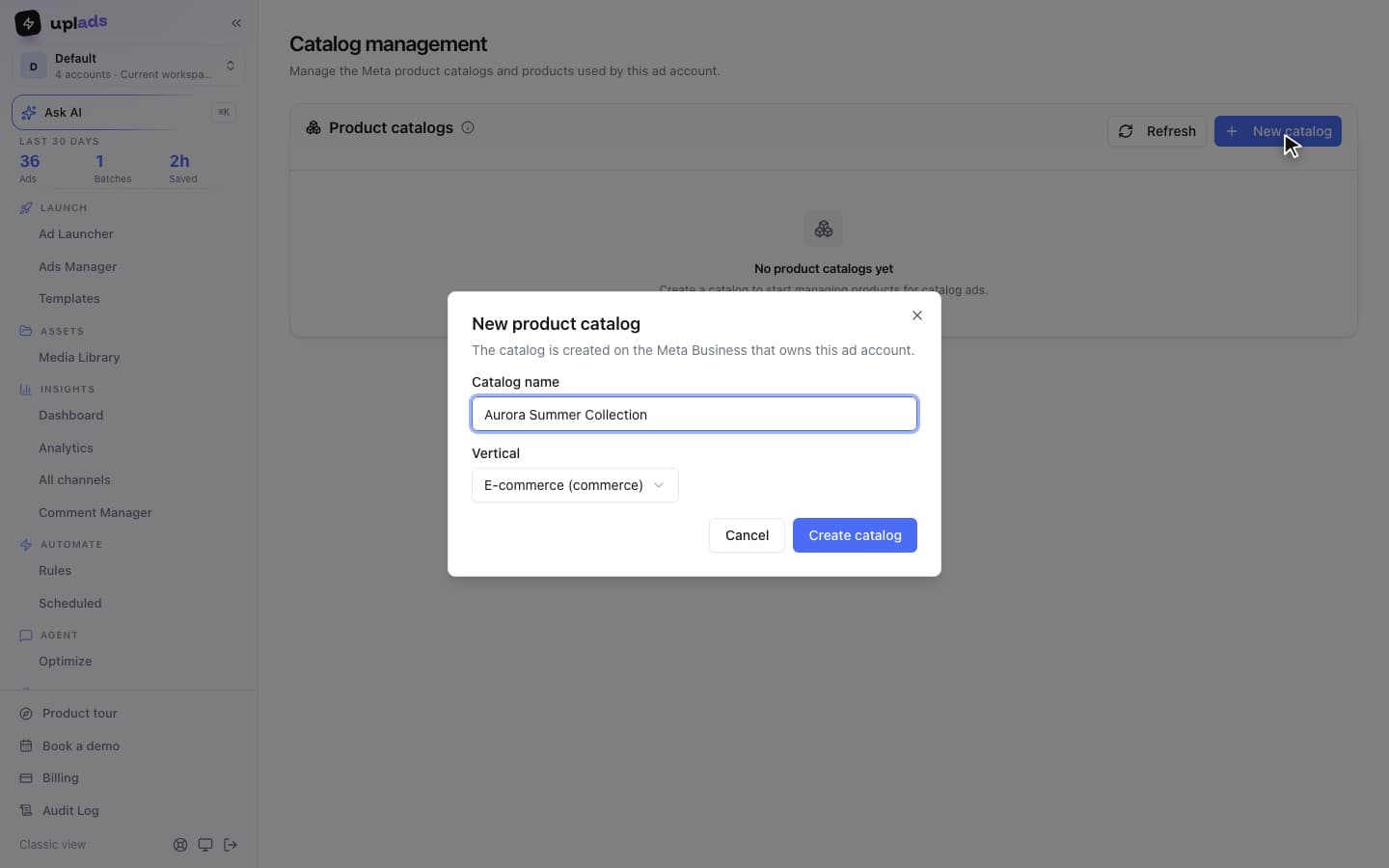
This is the gap uplads was built to close, and it is worth being precise about which surface. uplads does not create full Advantage+ catalog ads where Meta assembles the creative from the feed. It uses the Add Catalog Items enhancement: you select a Meta product catalog and a product set once at the start of the launch, and that catalog connection is applied to every creative in the batch automatically, static image, video, and multi-placement group alike, so your hand-built creative stays the primary asset with catalog items appended beneath it.
The launch then processes in the background 50 ads at a time, up to 500 creatives across 50 ad sets in one launch, and if one creative gets rejected the rest still go live. For the weekly catalog-backed creative test, the setup that took the per-ad clicking becomes one selection at the front of the launch.
Stop attaching the catalog one ad at a time
Pick the product set once. uplads applies the catalog connection to every creative in the batch and launches them in the background.
That distinction matters for picking the right tool. If your job is to stand up one Advantage+ catalog campaign and maintain it, the native Ads Manager flow in this guide is all you need; the steps above are complete. If your job is a weekly creative cycle against a stable catalog across one or many accounts, the constraint is not the setup, it is repeating it, and a bulk launch workflow that applies the catalog connection once per batch is the part that scales.
The setup is one-time; the workflow is the real question
Advantage+ catalog ads setup comes down to one honest sequence: build a clean catalog, make the pixel and the catalog agree on product IDs, create the product sets you will actually target, then spend ten minutes in Ads Manager under the Sales objective wiring catalog to campaign, set to ad set, format to ad. Do the prerequisites properly and the campaign build is trivial; rush them and you get ads that spend without ever personalizing.
The part the ranking guides skip is what happens after the first campaign. The format rewards iteration, and iteration means repeating the attach-the-catalog step at whatever cadence you test creative. Decide early whether you are running one durable Advantage+ catalog campaign, in which case the native flow is enough, or a weekly catalog-backed creative engine, in which case the setup is solved and the workflow is the thing worth tooling. Get the prerequisites right either way: every other problem in this format traces back to a catalog or a pixel that was set up in a hurry.