
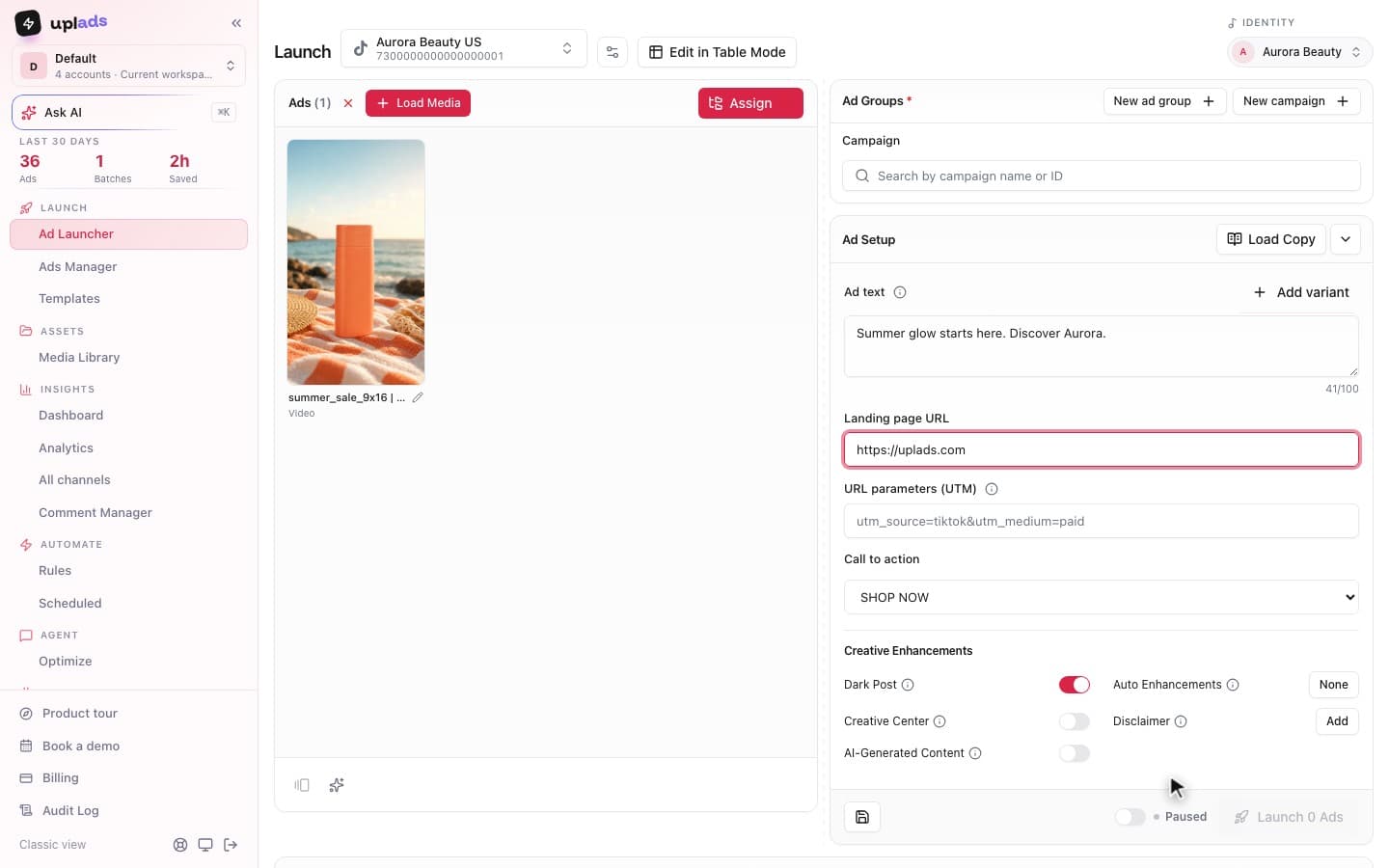
Most teams do not have a TikTok ads problem. They have a TikTok ads volume problem. One creative concept, three hooks, two aspect ratios and four audiences is twenty-four ads, and built one at a time inside TikTok Ads Manager that is most of an afternoon. Do that across a handful of accounts every week and bulk launching stops being a nice-to-have and becomes the only way the work fits in the week at all.
I build the ad-operations tooling for an Austrian performance marketing agency that runs paid media for ecommerce brands across Meta, Google and TikTok, so this is not a theory exercise. Before we built our own tooling the team kept a Notion page full of "duplicate this ad group ten times, change one thing" macros for client accounts, and killing that page was the unofficial north star. This guide is the operator version of bulk launching on TikTok: the four native methods, exactly how the Bulk Import spreadsheet works, the limits that will trip you, and where the native tools stop and a real launch workflow begins.
What does bulk launching TikTok ads actually mean?
Bulk launching TikTok ads means creating or publishing many ads in one action instead of building each ad by hand in TikTok Ads Manager.
That definition matters because "bulk" hides two very different jobs. The first is net-new launch: you have a batch of fresh creative assets and you need them live as new ads across one or many ad groups. The second is scaling: you already have an ad or an ad group that works and you want copies of it, with small changes, running in more places. TikTok's native tools split cleanly along that line, and choosing the wrong tool for the job is the single most common reason a "bulk" workflow ends up slower than doing it by hand. A spreadsheet upload is the right tool for net-new at scale. Duplication is the right tool for scaling a known winner. They are not interchangeable.
The other thing worth saying up front: bulk launching is a creative-operations discipline, not a TikTok feature you switch on. The platform gives you the mechanics. Whether bulk launching actually saves you time depends on whether your creative library is organised, deduplicated and named before you ever open the upload screen. Disorganised inputs make bulk tools slower, not faster, because every error in a 500-row file is now a 500-row debugging session.
What are the four ways to bulk launch TikTok ads?
TikTok Ads Manager gives you four built-in methods, and each one is the correct answer to a different question.
Bulk Import (CSV / Excel)
Create campaigns, ad groups and ads from one spreadsheet. The fastest native path for net-new launches at scale. Export a template or start from a blank one, fill it in, upload, preview, publish.
Bulk Duplicate
Copy existing ads or ad groups and adjust targeting and bid per copy. Up to 50 ads or 20 ad groups per batch. The right tool for scaling a proven winner, not for fresh creative.
Smart+ campaigns
Load up to 30 creatives into one Smart+ ad group and let TikTok's optimization shift budget toward what performs. Bulk creative input, automated delivery.
Bulk Edit
Change status, budget or bid across many ads or campaigns at once. A management tool, not a creation tool. Use it to activate, pause or rebudget a batch after launch.
Read that grid as a decision tree. If you are launching fresh creative at volume, Bulk Import is the workhorse. If you are scaling an ad that already converts, Bulk Duplicate is faster than rebuilding it in a spreadsheet. If you want to throw a lot of creative variations at one objective and let the system sort it out, Smart+ is built for exactly that. And once everything is live, Bulk Edit is how you manage the batch without clicking into every ad. The rest of this guide goes deep on the one that does the heavy lifting, then covers the others in the context of when they beat it.
How do you bulk launch TikTok ads with Bulk Import?
The Bulk Import feature creates ads by reading a structured CSV or Excel file you upload to TikTok Ads Manager, so the entire launch becomes one spreadsheet and one upload.
The mechanics are simple once you have seen them, and the safest way to learn the format is to let TikTok generate it for you rather than building a spreadsheet from memory. TikTok's own Bulk Import documentation is the canonical reference for the column structure, and it is worth keeping open the first few times. You can export an existing campaign, ad group or ad as a reference template, or start from the blank template TikTok provides. Either way you get a file with a fixed header row, an "Ads" sheet where your rows go, and an "Export Issues" sheet that flags problems after a validation pass. Here is the workflow that survives contact with real volume.
Bulk launching TikTok ads from a spreadsheet
- 1
Export a template
In TikTok Ads Manager, export an existing ad group or ad as a reference, or download the blank template. This gives you the exact header row the importer expects.
- 2
Build your creative library first
Have every video and image asset uploaded and named before you touch the spreadsheet. The file references creative; it does not upload it for you.
- 3
Fill one row per ad
For standard non-ACO creative, each row is one finished ad. For ACO creative, each row is one ad group. Never delete or rename a header, and leave non-mandatory fields blank rather than guessing.
- 4
Strip the IDs to create new
To create new ads rather than edit existing ones, remove the Campaign, Ad Group and Ad ID values from the exported file. Leaving an ID in place tells TikTok to edit that entity, not make a new one.
- 5
Upload, then read Export Issues
Upload the file, let TikTok validate it, and work the Export Issues sheet line by line before you publish. This is where a clean naming convention pays for itself.
- 6
Preview and publish
Review the drafted ads, confirm the previews render, and publish the batch in one action.
Two of those steps cause almost every failed import. The first is the ID rule: an exported template comes pre-filled with the IDs of whatever you exported, and if you forget to clear them, TikTok quietly treats your "new launch" as an edit of existing ads. The second is the ACO versus non-ACO row model, which is important enough to have its own section below. Get those two right and the importer is reliable. Get them wrong at 400 rows and you are debugging a spreadsheet instead of launching ads.
What are the TikTok Bulk Import limits and rules?
TikTok's Bulk Import feature has hard limits, and knowing them before you build the file is the difference between one upload and five.
2
Per CSV or Excel upload
500
Per file, split larger launches
1
One finished ad per row
1
One asset pool per row
Source: TikTok Ads Manager Help, Bulk Import feature, 2026
The 500-row ceiling is the one that shapes how you plan a big week. If a launch is 1,200 ads, that is at least three files, and the cleanest way to split is along a real boundary: one file per campaign, or one per ad account, never an arbitrary 500-then-700 cut that leaves you guessing which ads made it. The 2MB size limit is rarely a problem because the spreadsheet only references creative assets, it does not embed them, so files stay small even at the row limit.
The template rules are unforgiving in a way that rewards discipline. Do not delete or edit the header row, because the importer matches columns by header name and a renamed header fails the whole file. Not all fields are mandatory, so resist the urge to fill every cell; blank optional fields are valid and guessed-at values are not. And treat the Export Issues sheet as the source of truth after upload, not the preview screen. The validation pass is honest about what is broken; the preview only shows you what already passed.
Bulk Import vs Bulk Duplicate vs Smart+: which should you use?
The fastest bulk launch is the one that matches the job, so the real skill is picking the right native tool, not mastering one of them.
Use this as the working rule. Bulk Import wins when the creative is new and the volume is high: a weekly creative test, a fresh angle across many audiences, a net-new account build. The spreadsheet is overhead you pay once and amortise across hundreds of ads. Bulk Duplicate wins when something already works and you want more of it in more places. It tops out at 50 ads or 20 ad groups per batch and it cannot duplicate at the campaign level or across multiple levels at once, but for "this ad group converts, run it for three more audiences" it is faster than any spreadsheet because there is nothing to build. Smart+ wins when you genuinely do not know which creative will work and you would rather load up to 30 variations into one ad group and let TikTok's optimization allocate budget than pre-decide the split yourself.
| Job | Best native tool | Hard limit |
|---|---|---|
| Net-new creative at high volume | Bulk Import (CSV/Excel) | 500 rows, 2MB per file |
| Scaling a proven ad or ad group | Bulk Duplicate | 50 ads or 20 ad groups per batch |
| Testing many creative variations | Smart+ campaign | 30 ads per ad group |
| Pausing/rebudgeting a live batch | Bulk Edit | Management only, creates nothing |
The trap is using Bulk Duplicate as a launch tool. Because duplication is a few clicks, it feels fast, so teams duplicate an ad group, change one thing, duplicate again, change one thing, and an hour later they have hand-built a launch one ad group at a time, which is exactly the work bulk launching was supposed to eliminate. If you are changing the creative every time you duplicate, you do not have a duplication job. You have a net-new launch, and that belongs in a spreadsheet or a workflow built for it.
Can you launch Spark Ads in bulk?
You can, but only partly, and the reason matters: Spark Ads are the part of a TikTok bulk launch the spreadsheet does not fully solve, because they run from organic posts, not from creative you upload.
A Spark Ad turns an existing organic TikTok post, yours or a creator's, into an ad using a post authorisation code. That changes the bulk workflow in one important way: the creative-sourcing work happens before any bulk step, not inside it. You cannot point a row in a bulk file at a TikTok post that does not yet have an authorisation code, and you cannot generate those codes in bulk inside the importer. So the realistic Spark Ads workflow at scale is sequenced: collect the organic posts you want to run, get the authorisation codes in place, then either reference those posts in your bulk file or, more commonly, build one Spark Ad correctly and use Bulk Duplicate to scale it across audiences and ad groups.
This is worth calling out because Spark Ads are often the best-performing TikTok creative a brand has, and teams assume "bulk launch TikTok ads" includes them automatically. It does not. The bulk mechanics apply once the post authorisation exists; the work of gathering and authorising creator content is a manual, relationship-driven step that sits upstream of every bulk tool TikTok offers.
The naming convention problem gets worse in bulk
A messy naming convention is survivable when you launch ads one at a time. In a 500-row bulk file it is the thing that breaks your reporting for the rest of the campaign's life.
This is the quiet tax on bulk launching that nobody budgets for. The spreadsheet will happily accept whatever you type into the name column, and TikTok Ads Manager will not stop you launching 500 inconsistently named ads. The cost lands later, in every report you try to read, every optimisation decision you make from data that will not aggregate, and every handover where the next person cannot tell what any ad actually is. The fix is not complicated, it is just unglamorous: decide a token-based naming pattern before you build the file, something like product, then audience, then creative concept, then date, and apply it as a formula in the spreadsheet so every row is named the same way by construction rather than by hand. The discipline of a consistent naming convention is what makes bulk launching pay off instead of just moving the mess from launch time to reporting time.
Common bulk TikTok launch mistakes
Most failed bulk launches fail for a short list of repeatable reasons, and recognising them is faster than diagnosing each one cold.
The recurring ones, in rough order of how often they cost time:
- Leaving IDs in an exported template. The file imports as an edit of existing ads instead of a new launch. Always strip Campaign, Ad Group and Ad IDs before creating new ads.
- Mixing ACO and non-ACO rows. Non-ACO is one ad per row; ACO is one ad group per row. Mixing the two models in one file is the most common rejection.
- Editing the header row. The importer matches columns by header name. A renamed or deleted header fails the entire file, not just the row.
- Ignoring the Export Issues sheet. The preview only shows what passed. The validation sheet is where the actual problems are, and skipping it means publishing broken ads.
- Using duplication as a launch tool. Duplicating and changing the creative every time is a hand-built launch wearing a bulk costume. Net-new creative belongs in Bulk Import.
- No naming convention before the file is built. Inconsistent names launch fine and destroy reporting. Decide the pattern first and apply it as a formula.
- Forgetting Spark Ads sit upstream. Authorisation codes are not a bulk step. Gather and authorise the organic posts before any bulk action.
- Treating the 500-row limit as advice. It is a hard ceiling. Plan the split along campaign or account boundaries before you build, not after the upload fails.
Almost every item on that list is an operations failure, not a TikTok knowledge gap. The buyer knew the file needed the IDs stripped and a clean naming pattern; the work just did not get done carefully because doing it by hand across a 500-row file under a Monday deadline is exactly the kind of mundane, error-prone task that teams chronically under-invest in systematising.
Where native TikTok bulk tools stop
TikTok's native bulk tools get you launched. They do not touch the part of the job that actually eats the week, which is the creative-operations work that sits around every launch.
Look at what the spreadsheet assumes is already done. It assumes your creative library is uploaded, deduplicated and organised. It assumes you have a naming convention and the discipline to apply it to 500 rows by hand. It assumes you will run the same disciplined process again next week, and the week after, across every account. The Bulk Import feature is genuinely good at the narrow thing it does, which is turning a correct spreadsheet into live ads. It does nothing about getting the spreadsheet correct, keeping the creative library clean, or doing any of this consistently across many accounts at agency volume. That gap is not a TikTok problem to solve. It is where a launch workflow either exists or does not.
This is the same creative-operations problem uplads was built to remove. uplads is a bulk ad launch tool: you upload a set of creatives once, the same file is recognised and never re-uploaded twice, a naming convention is applied automatically at launch, and one upload fans a creative across many ad groups and accounts in a single pass instead of clicking through them one at a time. That runs on TikTok and on Meta (Facebook and Instagram) in production today - TikTok launching is included on the Growth and Agency plans - so the spreadsheet step above is one you can skip entirely rather than optimise. Google Ads and Snapchat run there too. The organised, deduplicated, consistently named creative library that makes a clean TikTok bulk file fast to build is the same library uplads maintains across all four networks. The same logic applies to running Google Performance Max asset groups at scale: the network differs, the creative-operations work does not.
The hard part of bulk launching is the creative operations
uplads bulk-launches creative on TikTok and Meta today: one organised, deduplicated, automatically named creative library across both networks. See the pricing.
For TikTok specifically, the takeaway is structural and unglamorous. Pick the native tool that matches the job: Bulk Import for net-new volume, Bulk Duplicate for scaling a winner, Smart+ for letting optimization sort variations, Bulk Edit for managing the live batch. Respect the limits before you build, not after the upload fails: 2MB and 500 rows per file, 50 ads or 20 ad groups per duplication, 30 ads per Smart+ ad group. Strip the IDs, keep the ACO and non-ACO rows separate, never touch the header row, and decide your naming convention before the first cell is filled. The teams that win on TikTok at volume are not the ones with a secret feature. They are the ones who treat bulk launching as a recurring creative-operations commitment instead of a heroic Monday afternoon.